

The ordering and booking system in practice
See what online ordering and booking look like to your customers – and how you manage orders and appointments yourself. The screenshots are from the real system with a sample business.
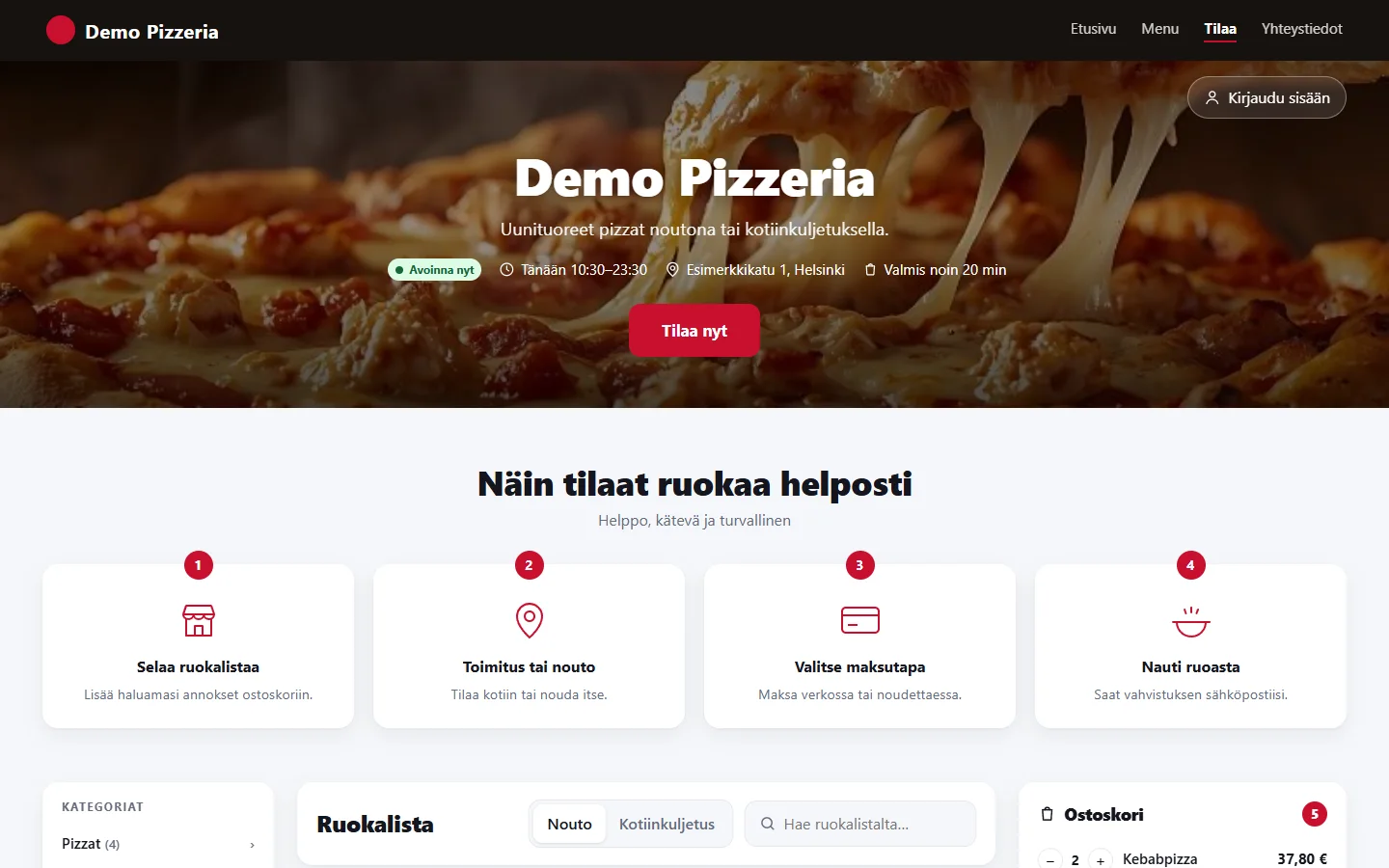
Online ordering straight from your own website
Customers browse the menu, choose toppings and sizes and pay online or on pickup. The order comes straight to you – no middlemen and no per-order commissions.
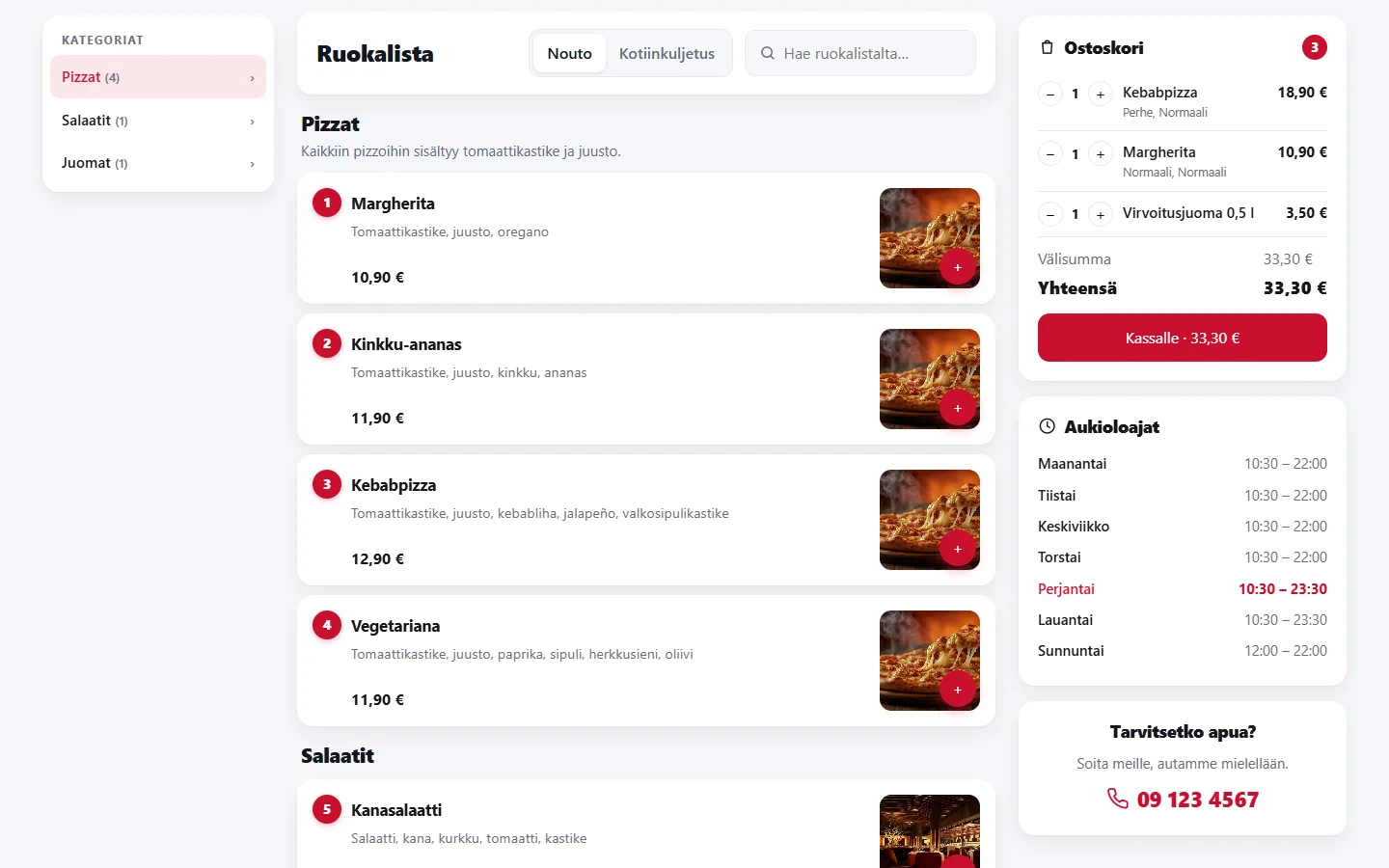
A clear menu and shopping cart
The menu is built from categories, and every item has a number, description, price and photo. The cart stays visible all the time, so the customer sees the total right away.
- Categories, search and familiar pizza numbers
- Pickup or delivery with one choice
- Opening hours and preparation time shown to customers
- Your own colours, logo and cover image
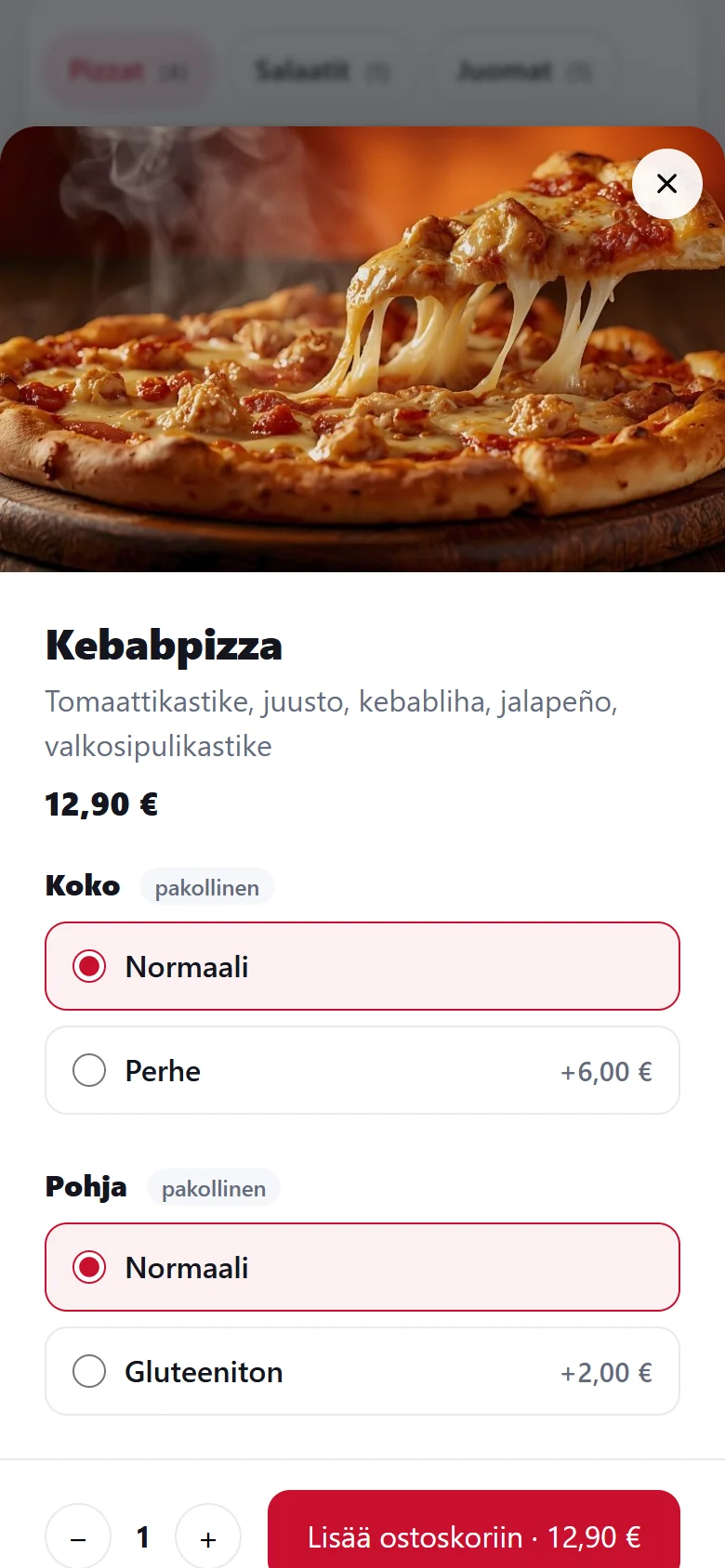
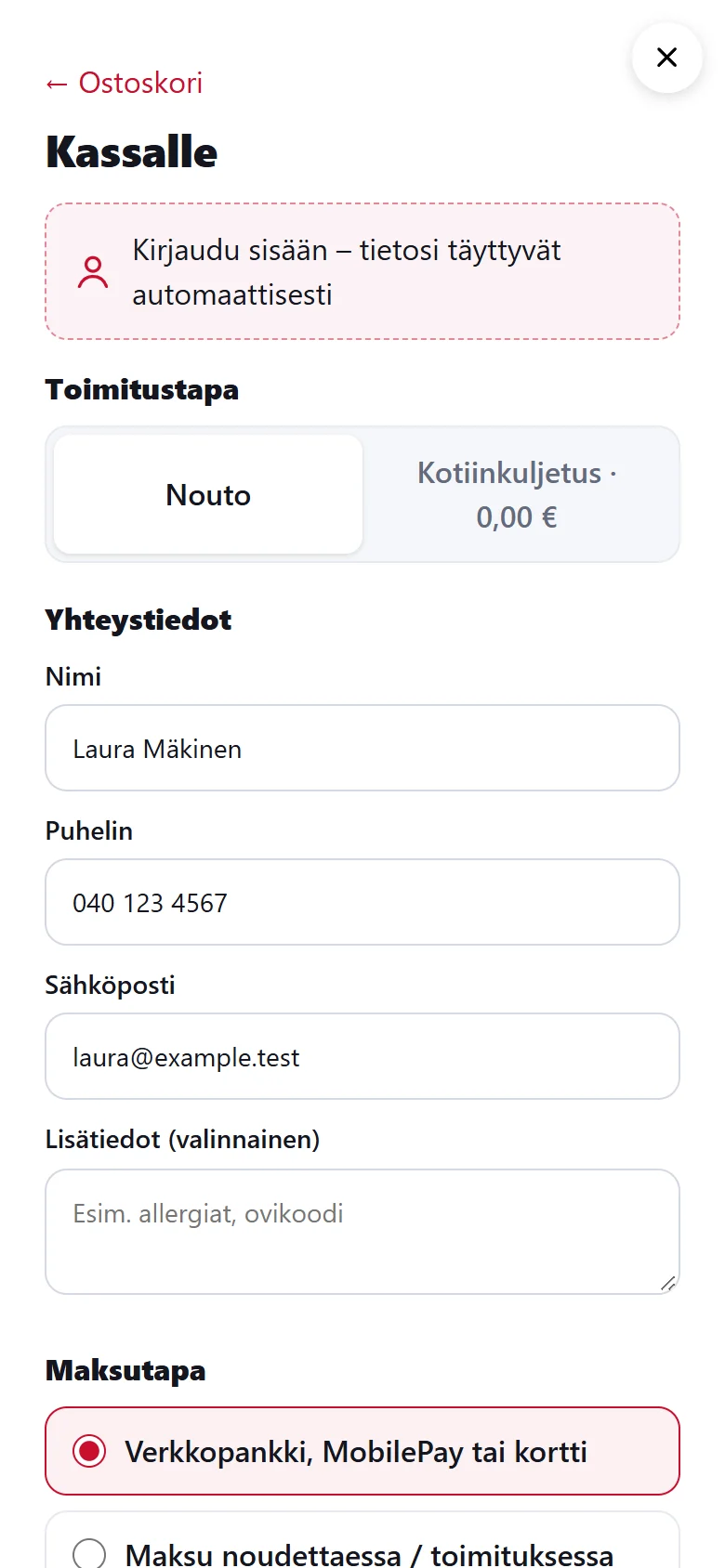
Smooth ordering on mobile too
Most food orders are placed on a phone. That's why item options and checkout are designed for the small screen first.
- Sizes, bases and extra toppings with prices
- Checkout in a single view – no unnecessary steps
- Online payment via Paytrail or payment on site
- Regular customers' details fill in after signing in
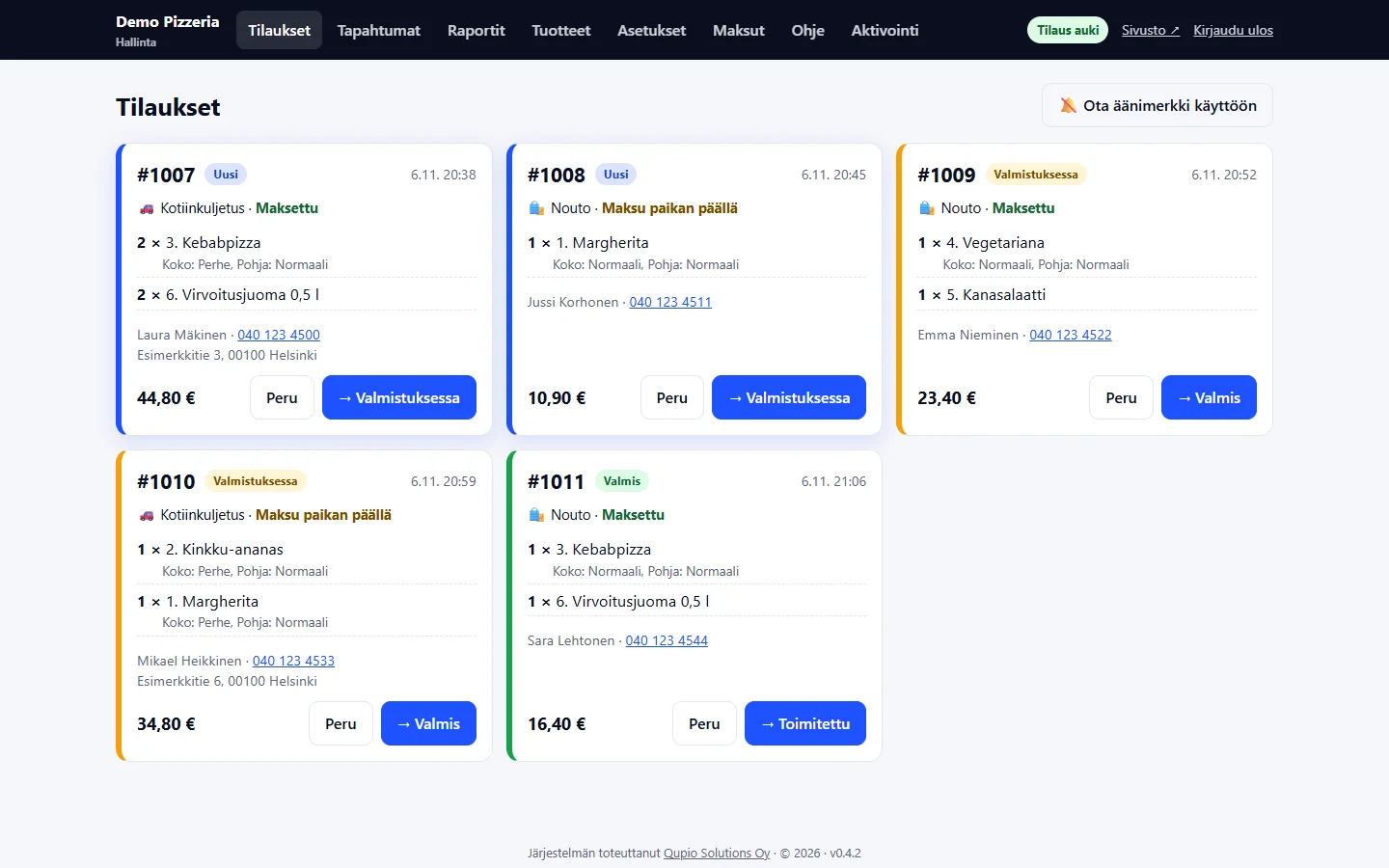
Orders managed in real time
New orders appear in the dashboard instantly, and you change the status with one tap. The dashboard works on a computer, tablet and phone.
- Sound alert for new orders
- New → in preparation → ready with one button
- Edit products, prices and opening hours yourself
- Reports on sales and orders
Online booking around the clock
Customers choose a service, a staff member and a free time – and get a confirmation right away. You see the day's appointments in one calendar without phone tag.
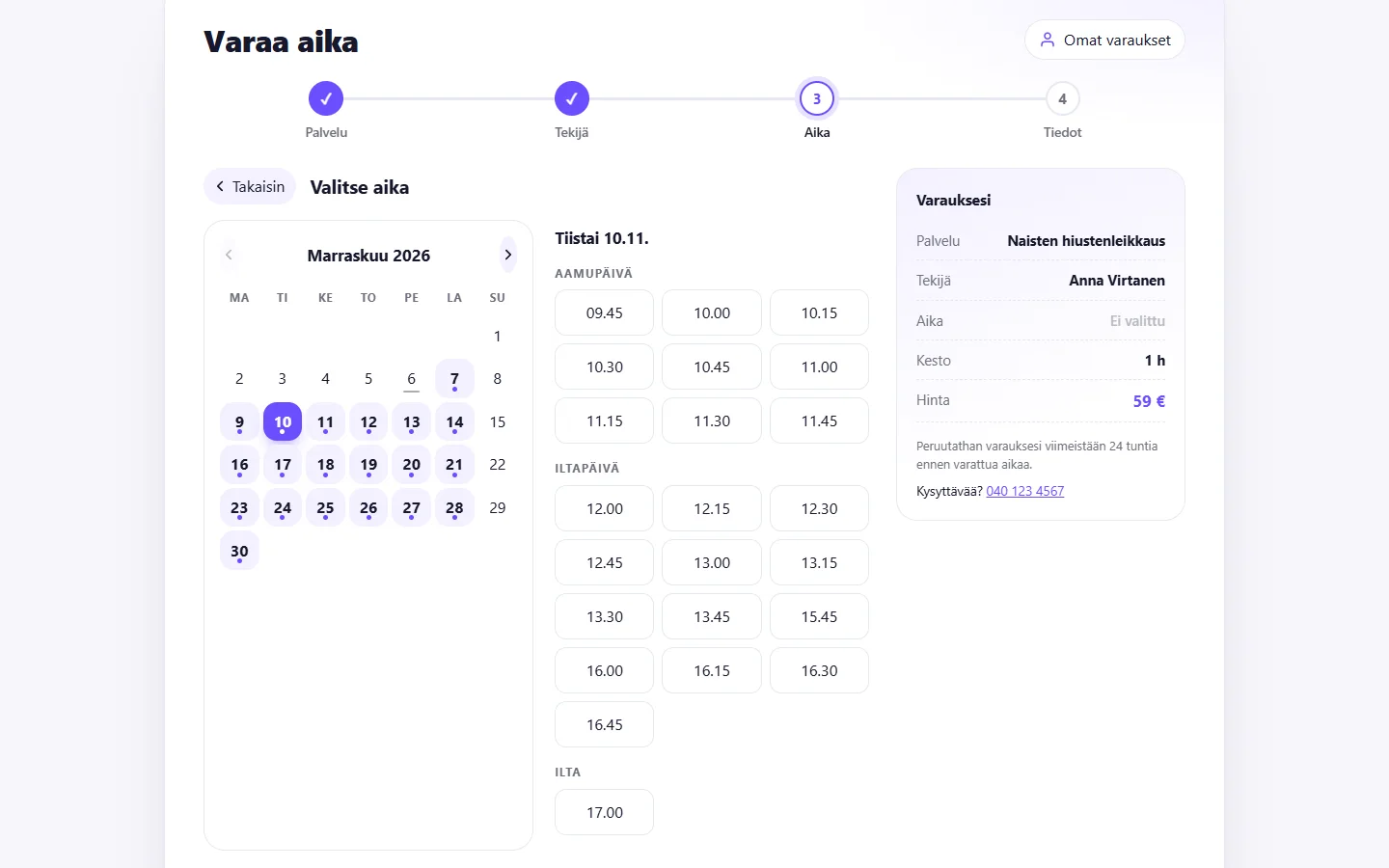
Service, staff member and time in four steps
The calendar only shows truly available times based on the service length and the staff member's working hours, so double bookings don't happen.
- Services by category with durations and prices
- Choose a staff member by photo or "first available"
- Free times grouped into morning, afternoon and evening
- Booking summary visible all the time
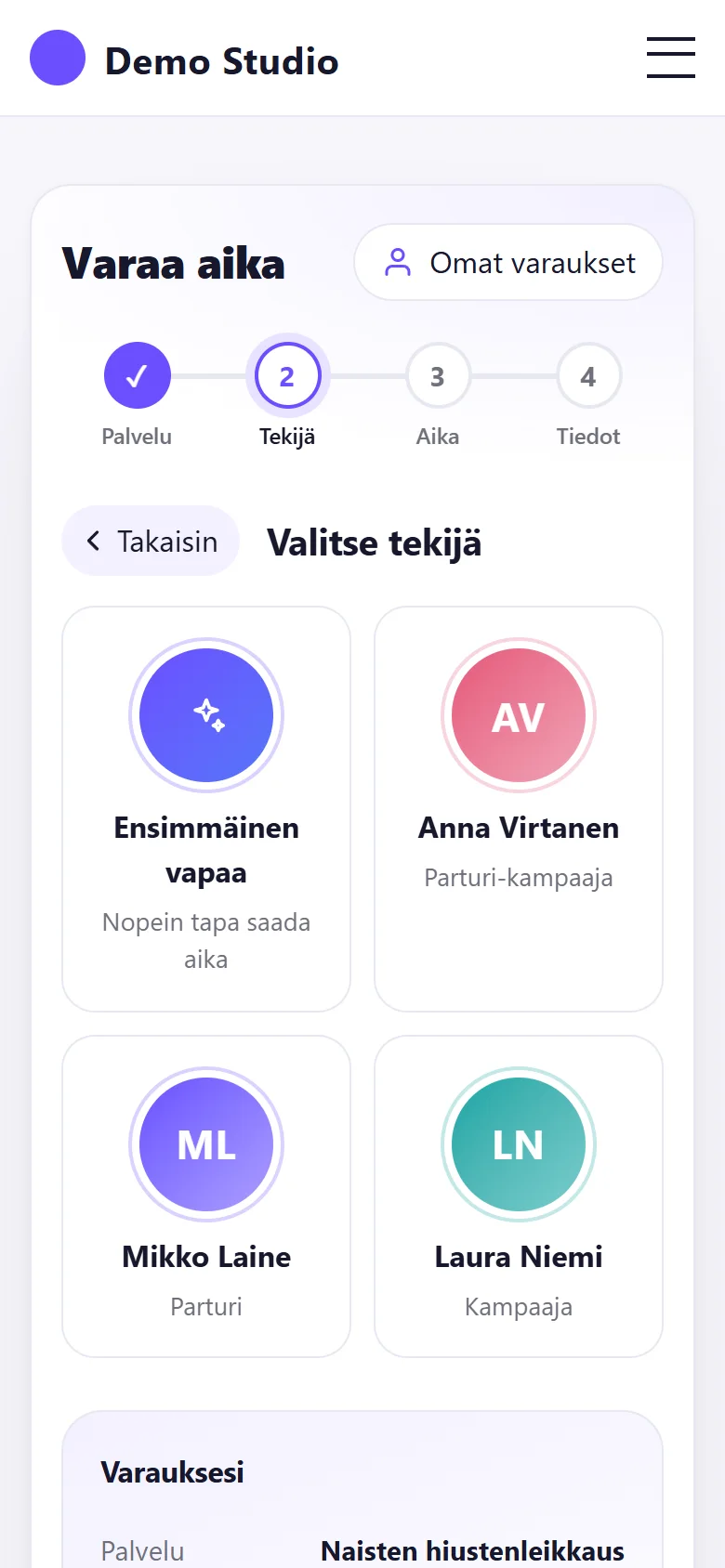
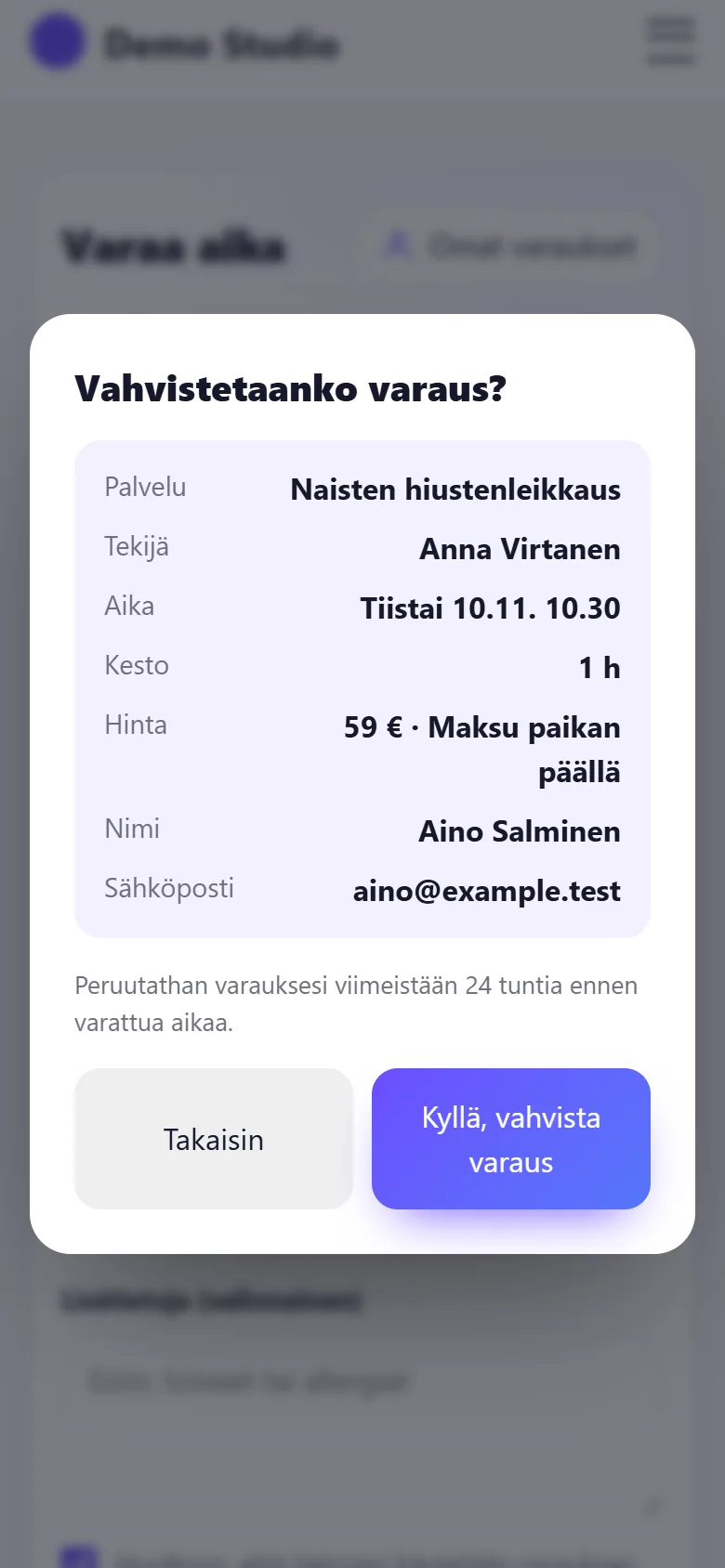
Confirmation step and My bookings
Before booking, the customer sees a summary, so there are fewer wrong bookings. On the My bookings page, customers handle changes themselves.
- Automatic confirmation and reminder by email
- Customers can move or cancel until the cancellation limit
- Sign-in and registration for customers
- Optional prepayment via Paytrail
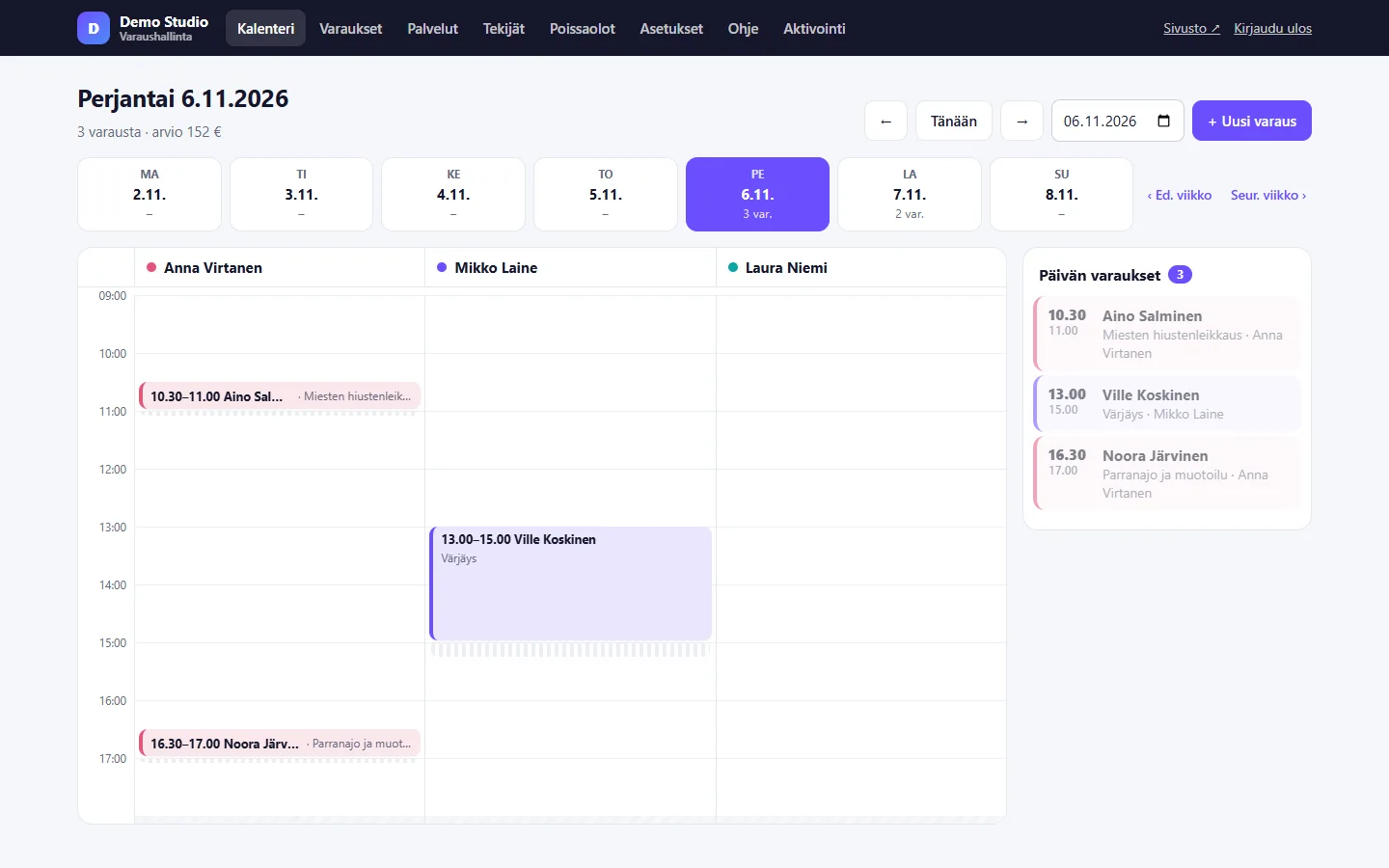
The day's calendar by staff member
In the dashboard you see the week's and the day's appointments by staff member. Times agreed on the phone go into the calendar in a few clicks.
- The day's calendar and the week's bookings at a glance
- Manual bookings, for example for phone customers
- Edit staff, services, working hours and absences yourself
- Works on a computer, tablet and phone
Your colours, your website
The system blends into your website: colours, corner rounding and shadows are adjusted in the dashboard to match your brand.
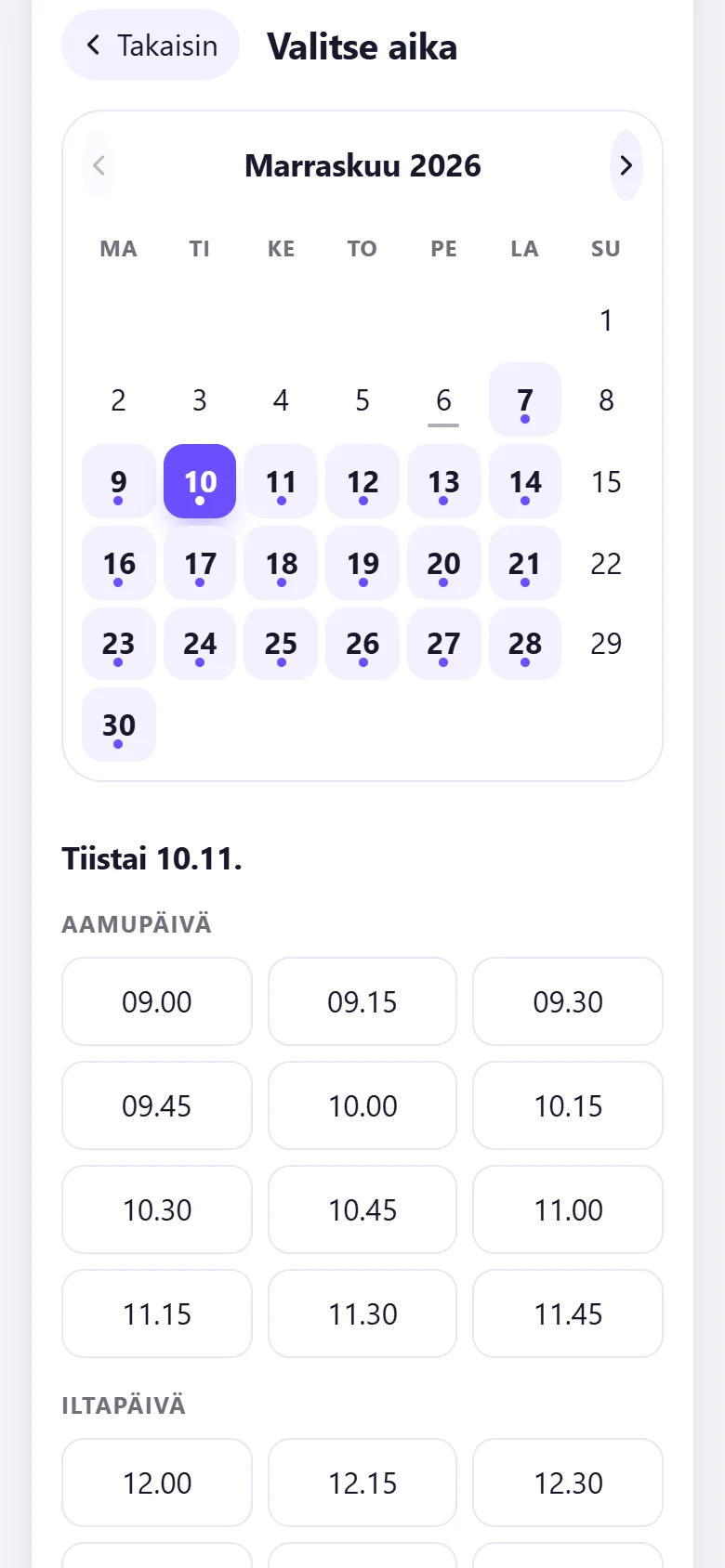
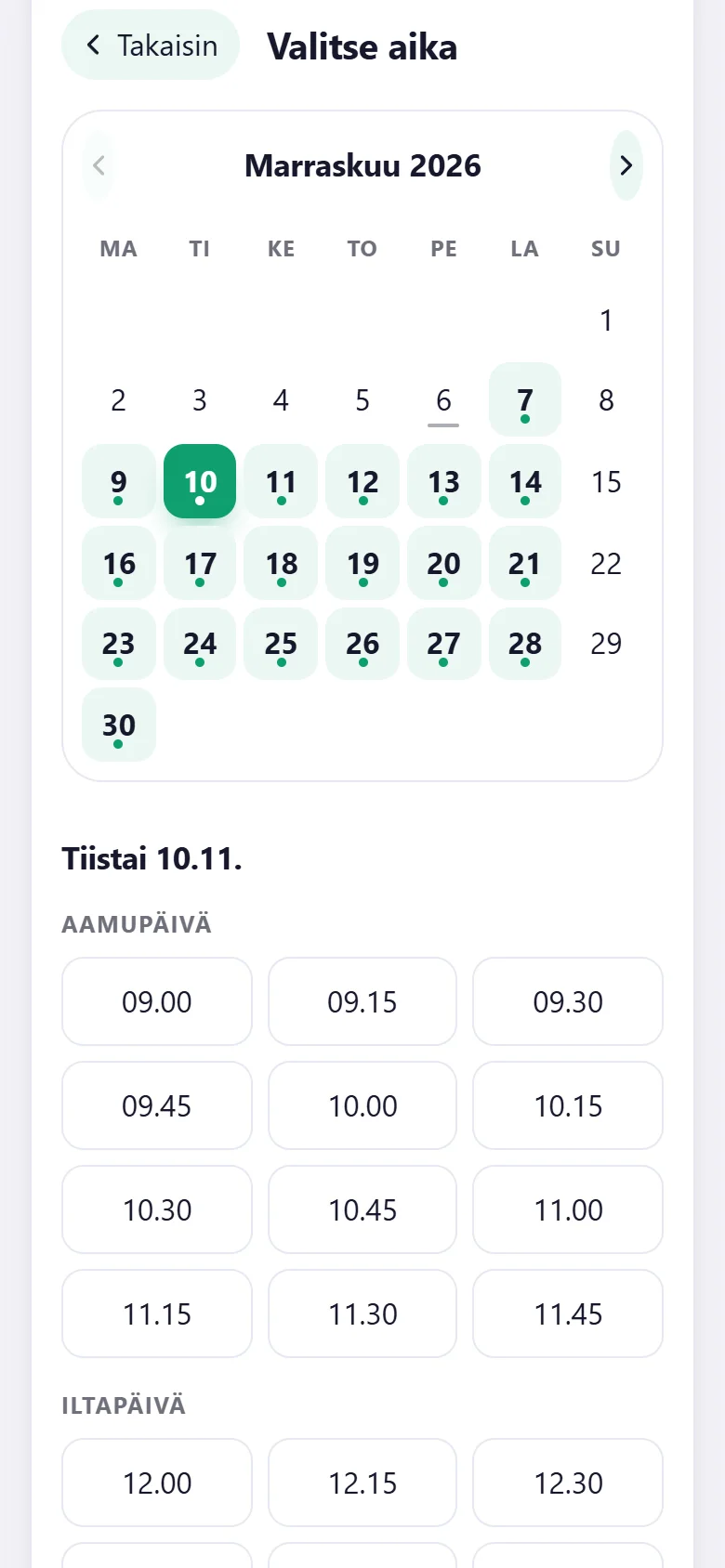
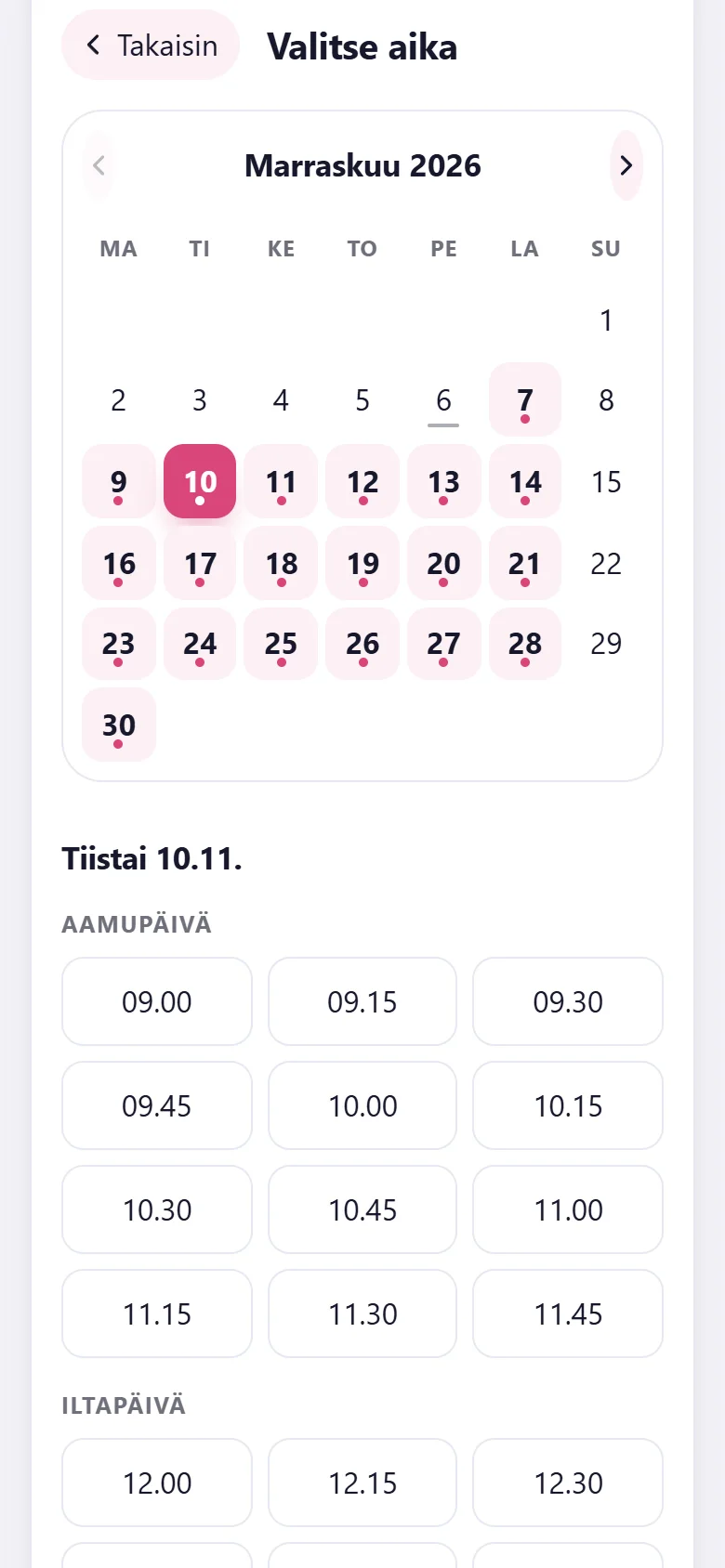
See the package for your industry
The industry pages list fixed monthly prices and what the package includes. If your industry isn't listed, I'll tailor the system to your needs.
Ready to take your online presence to the next level?
Tell me about your situation – you'll get a clear, fixed-price quote and a straight answer on what makes sense for your business.